Bind Terminal
This feature establishes a one-time link between a newly installed Terminal/Fiuu VT+ and a registered POS. Once paired, the terminal can communicate with the POS through cloudECR. After successful binding, the terminal becomes available for use by the POS upon login.
Prerequisites
- Verify that your POS system has a registered account with cloudECR.
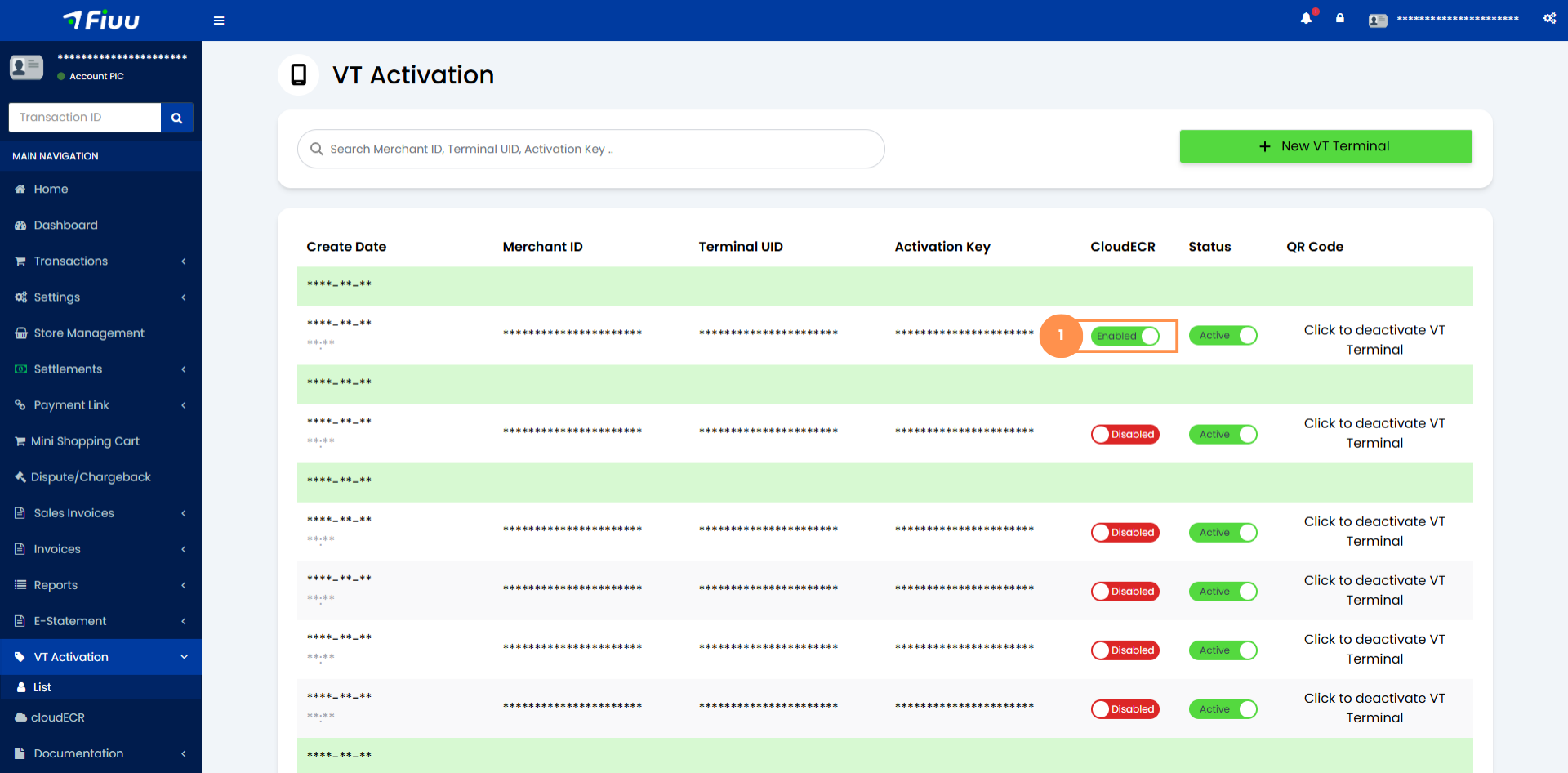
- Ensure cloudECR is enabled on your Fiuu VT+ or terminal profile.
- Both applications are registered under same merchant account.
Binding Flow
Before a POS can communicate with a terminal, the terminal must be bound to the POS in cloudECR. This process establishes a secure link between the POS and the terminal, enabling authentication and subsequent transaction operations.
Note: The binding process occurs only once per terminal-POS pairing. However, re-binding can be initiated from the terminal if needed. Both the POS and the terminal have the ability to unbind the connection.
Terminal Binding (Standard Binding)
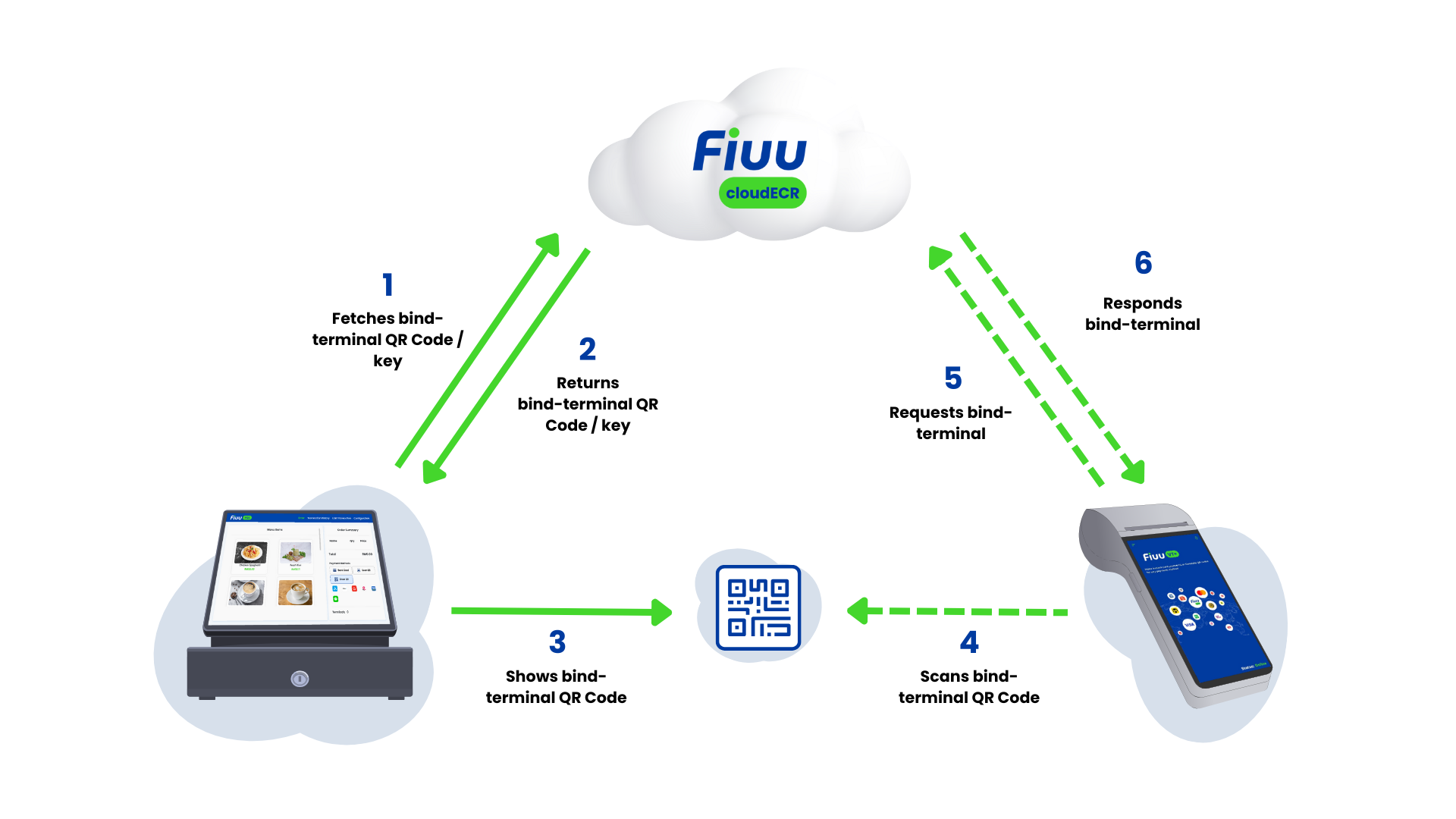
- The POS requests a binding key or QR code from the server via:
/api/bind-terminal-key(binding key)/api/bind-terminal-key?option=image(QR code)
- The server generates the binding key or QR code and returns it to the POS.
- The POS displays the QR code or binding key to the terminal.
- The terminal scans the QR code or manually enters the binding key.
- The terminal sends a bind terminal request to the server.
- The server validates the request and completes the terminal binding process.
Prebind Terminal (Express Binding)
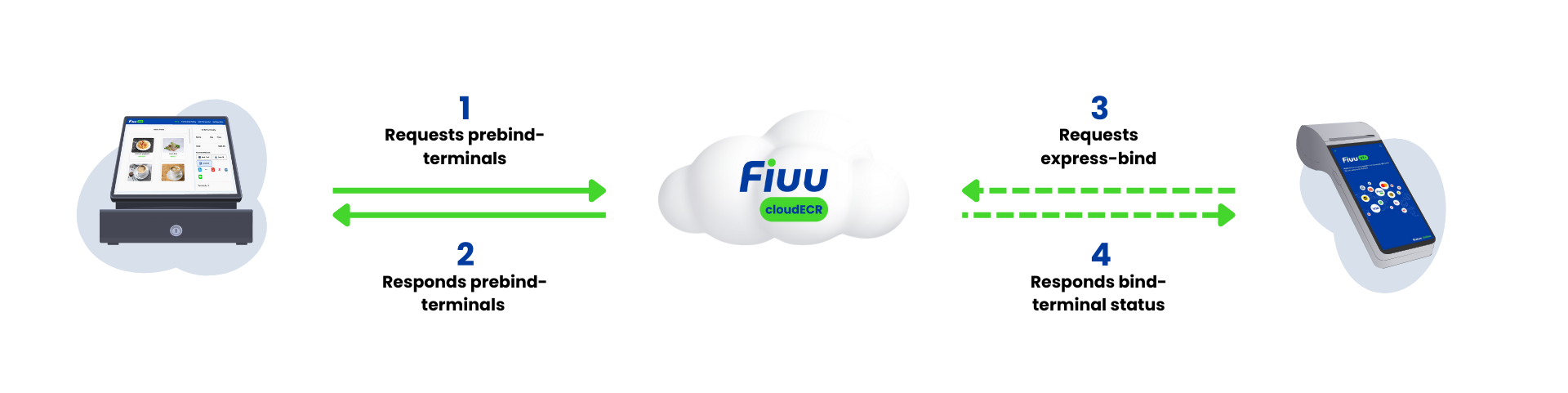
- The POS initiates prebinding by calling
/api/prebind-terminalwith auniqueIdsarray in the request body. - The server validates the request and registers the provided terminal IDs for prebinding.
- The terminal selects the Express Bind option and sends an express-bind request to the server.
- The server validates the request against the prebound IDs and completes the terminal binding.
Verification (Optional)
- The POS retrieves terminal list using the
GET /api/terminalsAPI to verify the binding process. - cloudECR verifies the request and returns the list of bound terminals.
Binding Through Merchant Portal
You can use the following features as an alternative to bind terminals directly through the Merchant Portal. This allows merchants to complete the binding process without integrating the bind terminal APIs above.
Navigate to the Merchant Portal, then go to the cloudECR menu. Merchants can choose between two binding methods:
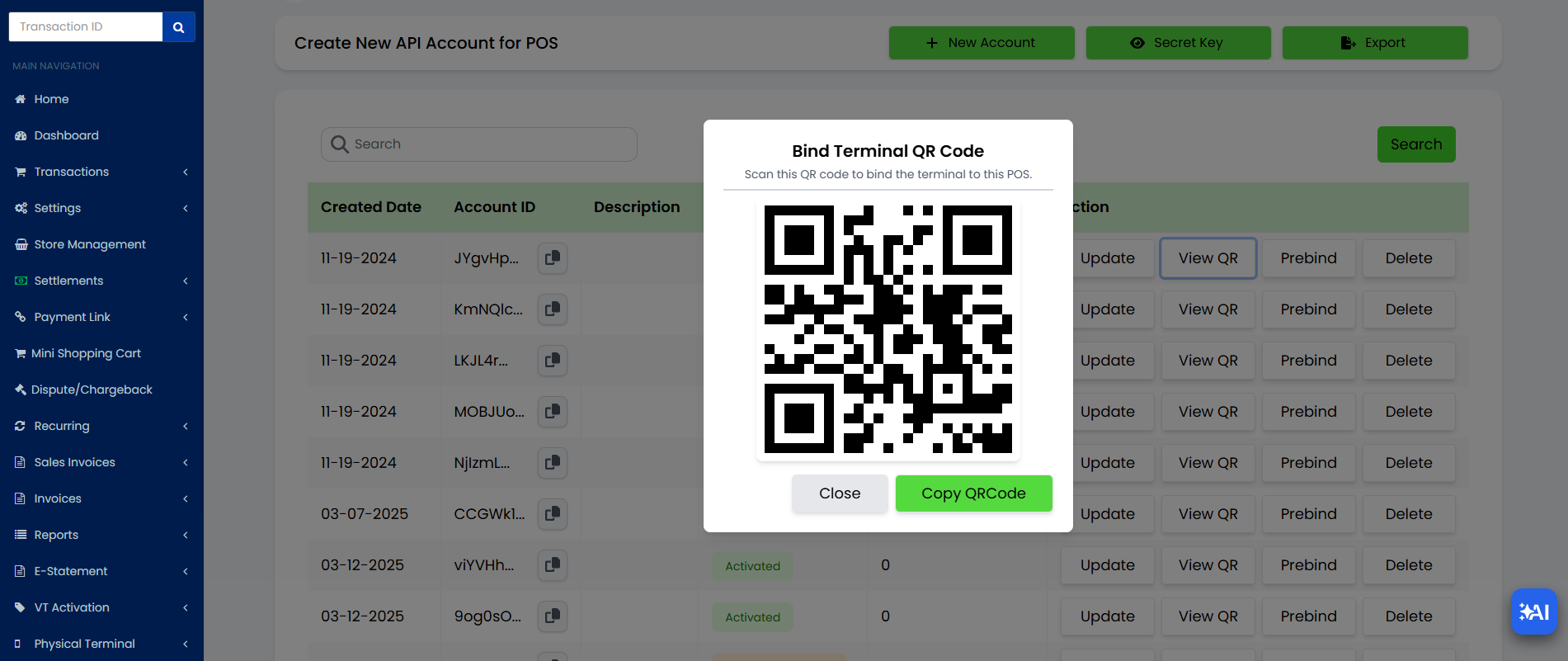
- QR Scan – The terminal can directly scan the QR code to bind it to the merchant account.
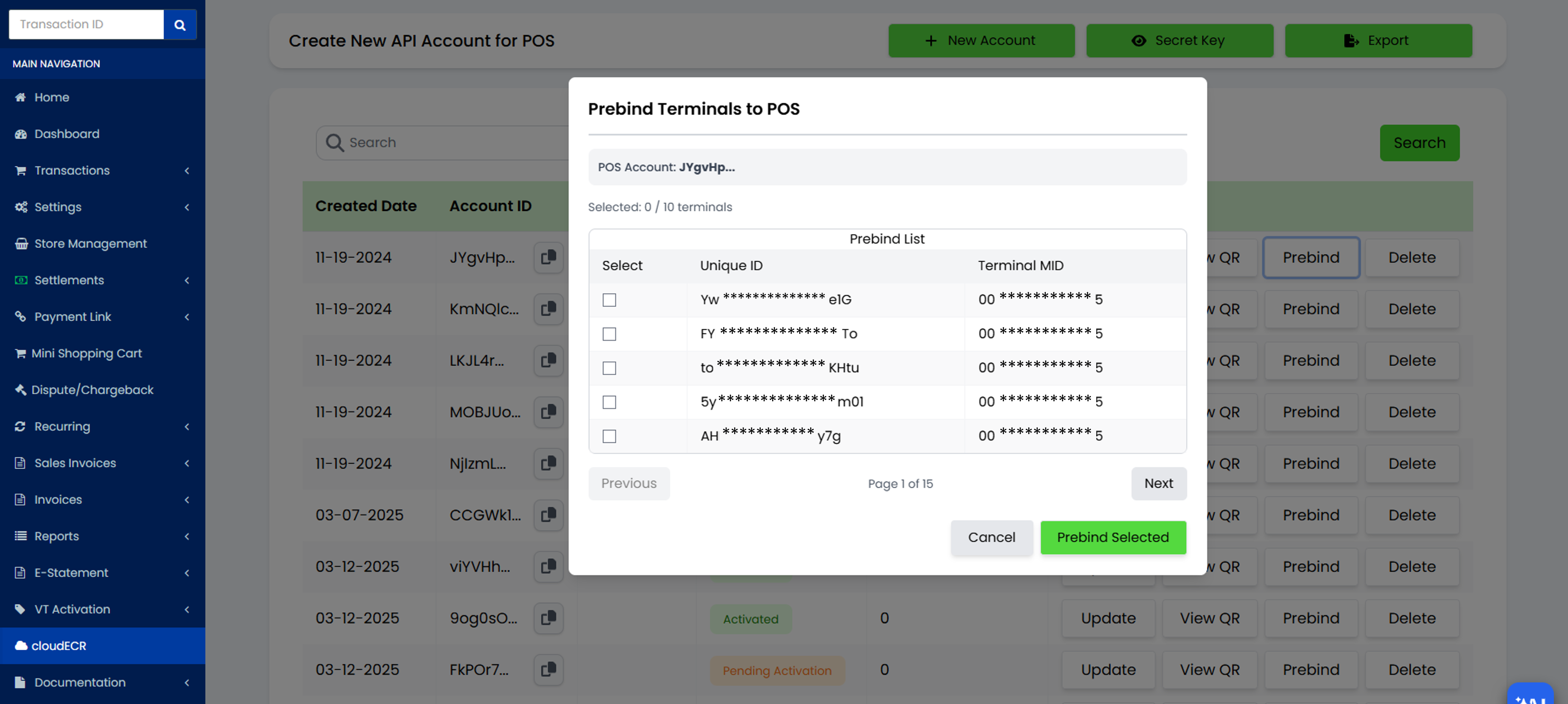
- Prebind – Preselect the terminal from the available terminal list and bind it to the merchant POS account.
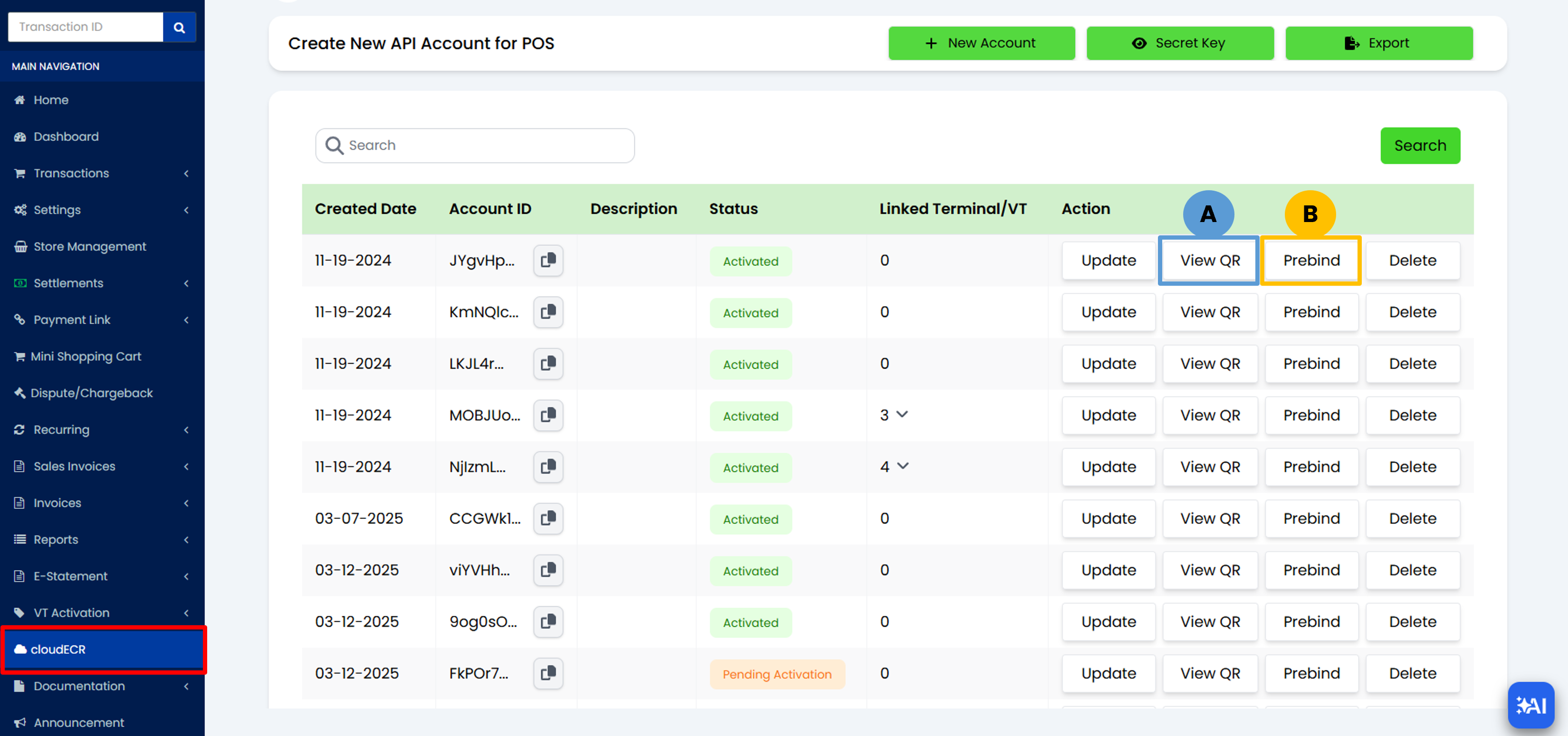
Both methods allow the terminal to be linked quickly and securely, enabling the merchant to start processing transactions immediately.
Option 1: QR Scan Binding
QR Scan binding is recommended for quick setup when the physical terminal is available. The QR code contains a generated code used for terminal identification and automatic pairing, and it remains valid for 3 days before expiring.
Option 2: Prebind (Preselect Terminal)
Prebind is useful when the terminal information is already registered in the system or when the terminal is not physically available for QR scanning. Merchants can preassign terminals before deployment.
Troubleshooting
| Issue | Possible Cause | Recommended Solution |
|---|---|---|
| Merchant ID Mismatch | The POS and terminal are registered under different merchantId values. |
|
| Terminal Not Enabled for cloudECR | The assigned terminal is not activated for cloudECR in the Merchant Portal. | Log in to the Merchant Portal and ensure the terminal is enabled for cloudECR under the Terminal Management section. |
| Timeout / Network Error | Network connectivity issue or incorrect endpoint URL. | Verify your internet connection and confirm you are calling the correct URL. |
| Invalid Terminal uniqueId (Prebind) | The POS requested prebinding for an invalid or incorrect terminal uniqueId, resulting in a false-positive registration. |
|
| Expired Bind Terminal Key / QR Code | The terminal scans or uses a bind terminal key (or QR code) retrieved from GET /api/bind-terminal-key after its 3-day TTL has expired. |
|