Introduction
The cloudECR API enables seamless integration between your POS system and Fiuu VT+ or other supported payment terminals. It provides a secure interface to authenticate users, manage terminal and channel data, and perform fund transfers programmatically.
This guide will help you set up your environment, authenticate with the cloudECR platform, and start processing transactions. By following the steps in this section, you’ll ensure your POS system is properly configured and ready to communicate with cloudECR.
Architecture Overview
Below is a high-level flow of how your POS system interacts with cloudECR and sends the request to the terminal:
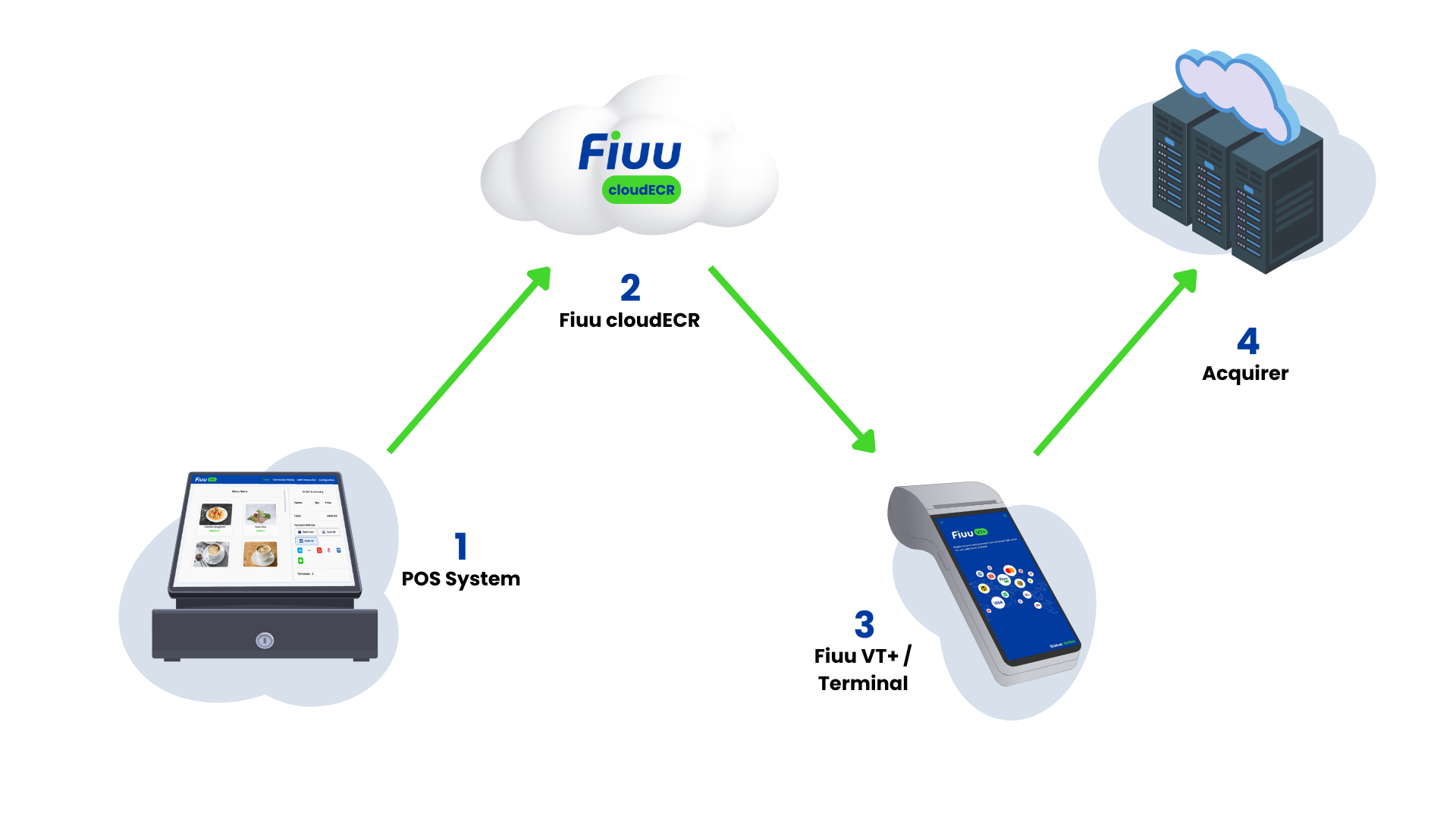
- POS Application – Your POS system that initiates API calls.
- cloudECR API Gateway – Centralized gateway that handles authentication, validation, and routing.
- Terminal - Fiuu VT+ or any payment terminal that handles user payment entries.
- Acquirer – Backend services that responsible for business logic such as processing sales and void requests.
Supported Use Cases
The API supports several integration scenarios, including:
- Authentication — Obtain and refresh access tokens securely.
- Terminal Management — Retrieve details of available terminals for your POS system.
- Channel Discovery — Fetch a list of available e-wallet channels and their metadata.
- Transfer Requests — Initiate and track outgoing transfer requests such as Sale, Void and Get-Last.
Each endpoint is designed to follow RESTful conventions, returning JSON-formatted data for ease of use across modern platforms.
Prerequisites
- Compatible POS systems
- Merchant Application Account
- Internet connection
Compatible POS Systems
Our solution is designed to work with any POS system that can communicate via RESTful APIs.
- Protocol: HTTP/HTTPS (REST API)
- Data Format: JSON (UTF-8 encoded)
- Authentication: Bearer token
- Capabilities Required:
- Ability to send POST requests with JSON payloads.
- Ability to receive webhook/callback responses (optional for async flows).
- Network access to cloudECR server’s API endpoint.
Onboarding Steps
Follow these steps to begin integrating with the cloudECR API:
1. Request Dev Merchant Account
- Contact our support team at support@fiuu.com to obtain your dev merchant account.
- Complete your dev merchant registration.
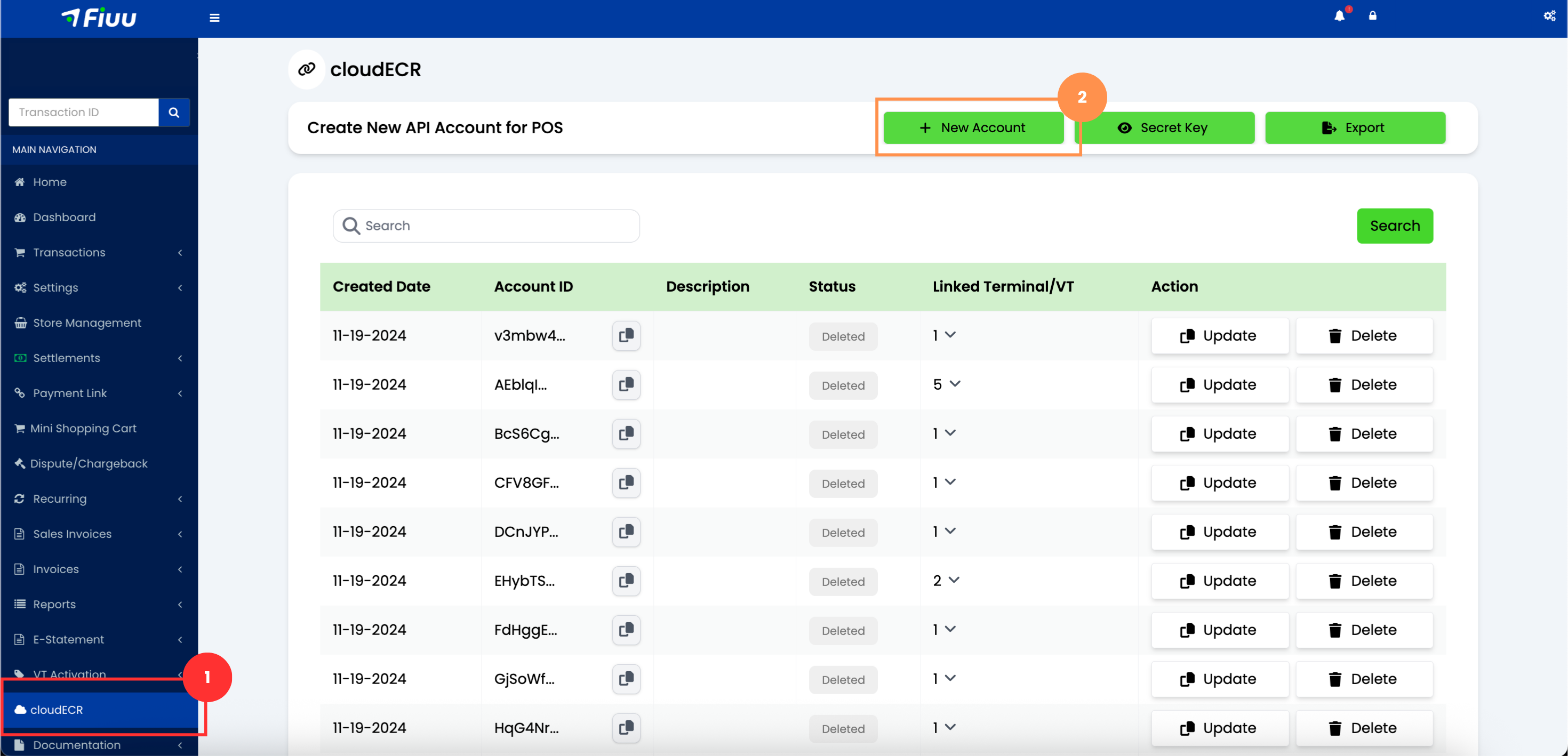
2. Setting Up API Account
- Log in to the Fiuu Merchant Portal.
- Navigate to the cloudECR menu and click
+ New Accountbutton. - Fill in all the required fields and hit
Createbutton. - Check your dev merchant registered email for a activation link and click on it to activate the account
Note: If you don’t see the email, check your spam or junk folder.
3. Authenticate
- Send a request to the
/auth/loginendpoint to obtain your initial access token. - Use the posId and password provided in your activation email as the request body parameters.
4. Test Endpoints
- Try calling
/api/terminalsor/api/ewallet-channelsto verify connectivity.
5. Implement Business Logic
- Integrate the
/api/transferendpoint and ensure proper handling of the token refresh logic.
Each merchant is issued a unique Secret Key for signature validation.
You can obtain it in our Merchant Portal under cloudECR menu.
Store this key securely — it is required for authentication and other security processes.
6. Move to Production
- Once verified, switch to the production merchant credentials.
- Perform a Live Test Transaction to verify authentication, transfer flow and response handling with a small transaction.
- Ensure logging and transaction monitoring are active for production stability.
Environment Setup
The POS system communicates with cloudECR over an HTTP connection. This connection establishes a direct and reliable link between the POS and cloudECR, enabling real-time data exchange. We use the production environment for both integration and live operations to ensure consistent data synchronization between the merchant and the terminal.
URL: https://cloudecr.fiuu.com
Requests to this URL will directly interact with the production system and should be handled with caution.
Best Practices
- Always use HTTPS for all requests — unencrypted HTTP is not supported.
- Keep your Secret Key, Access Token, and Refresh Token confidential — never hardcode or store them in client-side code or public repositories.
- Sign all payloads using the HMAC-SHA256 method described in the Request Format section to prevent tampering.
- Ensure all client systems maintain accurate timestamps — signature verification may fail if the request timestamp differs from server time beyond allowed tolerance.
- Regenerate your Secret Key immediately if you suspect it has been exposed.
- Implement proper retry logic and idempotency for transfer requests.
- Log requests and responses (excluding sensitive data) for traceability.
- Monitor API deprecation announcements and upgrade when new versions are released.
Next Steps
Once you’ve completed the onboarding setup:
- Proceed to Authentication for token management details.
- Review API Reference for available endpoints.
- Refer to Sample Messages for request/response examples.